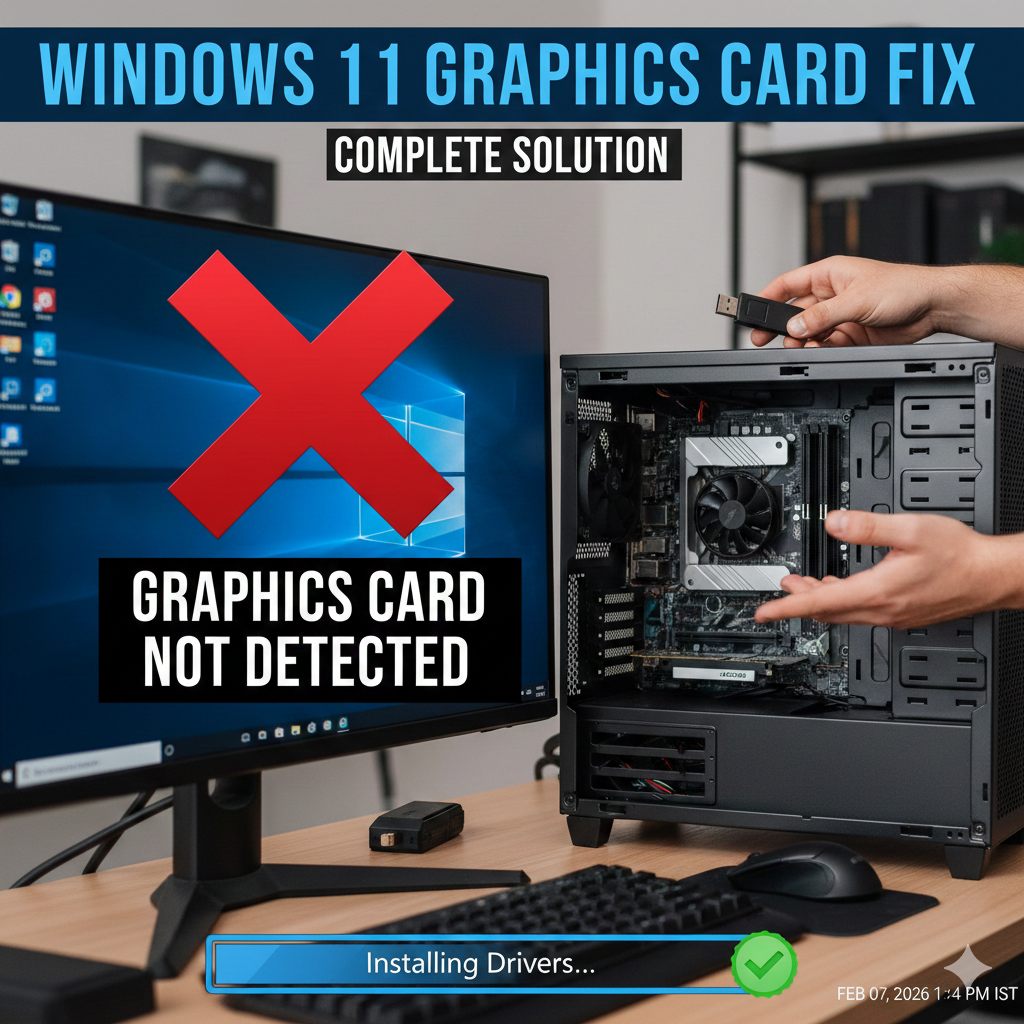
Aajkal bahut se users Windows 11 install ya update karne ke baad ek common problem face kar rahe hain — graphics card Device Manager me show nahi hota. Is wajah se laptop ya PC slow ho jata hai, gaming nahi hoti aur screen resolution bhi proper nahi dikhti.
Agar aapke saath bhi yahi problem ho rahi hai, to tension lene ki bilkul zarurat nahi. Is blog me hum step-by-step samjhenge ki Windows 11 me graphics card detect kyu nahi hota aur ise kaise fix kare.
Graphics Card Show Nahi Hone Ke Main Reasons
Windows 11 me graphics card problem ke peeche kaafi reasons ho sakte hain. Sabse common reasons niche diye gaye hain:
- Graphics driver install nahi hai
- Galat ya outdated driver install ho gaya hai
- Windows update issue
- BIOS setting problem
- Windows ne Basic Display Adapter use kar liya hai
Ab ek-ek karke solution dekhte hain
Solution 1: Device Manager Me Check Kare
Sabse pehle ye confirm kare ki graphics card waha hai ya nahi.
Steps:
- Keyboard se Windows + X dabaye
- Device Manager open kare
- Display Adapters par click kare
Agar yaha:
Sirf Microsoft Basic Display Adapter dikhe Ya kuch bhi na dikhe To iska matlab driver problem hai.
Solution 2: Graphics Driver Manually Install Kare
Windows 11 kabhi-kabhi driver automatically install nahi karta. Is case me hume manually driver install karna padta hai.
Intel Graphics Driver ke liye: Intel ki official website se driver download kare
AMD Graphics Driver ke liye: AMD ki website par jaakar apna model select kare
NVIDIA Graphics Driver ke liye: NVIDIA official site se latest driver download kare
Important Tip:
Hamesha driver official website se hi download kare, third-party software avoid kare.
Driver install hone ke baad system restart zarur kare.
Solution 3: Windows Update Check Kare
Kai baar Windows update pending hone ki wajah se graphics card properly detect nahi hota.
Steps:
- Settings open kare
- Windows Update par jaye
- Check for updates par click kare
- Sare updates install kare
Update ke baad PC restart kare aur dobara Device Manager check kare.
Solution 4: Hidden Devices Show Kare
Kabhi-kabhi graphics card hidden ho jata hai.
Steps:
- Device Manager open kare
- Top menu me View par click kare
- Show hidden devices select kare
Ab Display Adapters check kare. Agar graphics card dikhe to driver update kare.
Solution 5: BIOS Settings Check Kare
Agar aapne Windows khud install kiya hai ya BIOS reset hua hai, to BIOS setting issue ho sakta hai.
BIOS me check kare:
- Graphics Configuration
- Primary Display
- Integrated / Dedicated Graphics
Agar Dedicated Graphics disable hai to use enable kare.
Note: Agar BIOS ka knowledge nahi hai to kisi experienced person se help le.
Solution 6: Old Driver Uninstall Karke Dubara Install Kare
Galat ya corrupt driver bhi issue create karta hai.
Steps:
- Device Manager open kare
- Display Adapter par right click kare
- Uninstall device select kare
- Restart kare
- Ab official driver install kare
Laptop Users Ke Liye Extra Tip:
Laptop me aksar dual graphics hoti hai (Intel + NVIDIA/AMD).
Isliye:
Laptop brand (HP, Dell, Lenovo, Asus) ki official site se driver download karna best hota hai.
Conclusion
Windows 11 me graphics card show nahi hone ki problem zyada tar driver issue ki wajah se hoti hai. Agar aap upar diye gaye steps ko dhyan se follow karte hain, to 90% cases me problem solve ho jati hai.
Agar phir bhi issue solve nahi hota, to ho sakta hai hardware problem ho, jiske liye technician ki help leni pade.
Frequently Asked Questions (FAQs)
Kya Windows 11 me graphics card problem common hai?
Haan, Windows 11 install ya update ke baad graphics card related issue kaafi common hai, especially jab driver automatically install nahi hota ya outdated ho jata hai.
Kya bina graphics driver ke laptop slow ho jata hai?
Bilkul. Agar proper graphics driver install nahi hai to system Microsoft Basic Display Adapter par run karta hai, jisse performance slow ho jaati hai aur gaming ya video editing jaise kaam sahi se nahi hote.
Kya third-party driver updater use karna safe hai?
Zyada tar cases me official website se driver install karna hi best aur safe hota hai. Third-party tools kabhi-kabhi galat ya incompatible driver install kar dete hain, jo problem aur badha sakta hai.
Laptop me dual graphics ho to kya kare?
Agar aapke laptop me Intel + NVIDIA / AMD dual graphics hai, to hamesha laptop brand ki official website (HP, Dell, Lenovo, Asus) se hi recommended driver install kare.
Important Advice
Windows 11 me graphics card issue aane par bina soche-samjhe Windows dobara install karna sahi solution nahi hota. Pehle driver, Windows update aur BIOS settings check karna chahiye. Zyada tar cases me simple driver fix se hi problem solve ho jaati hai.

Proudly powered by WordPress